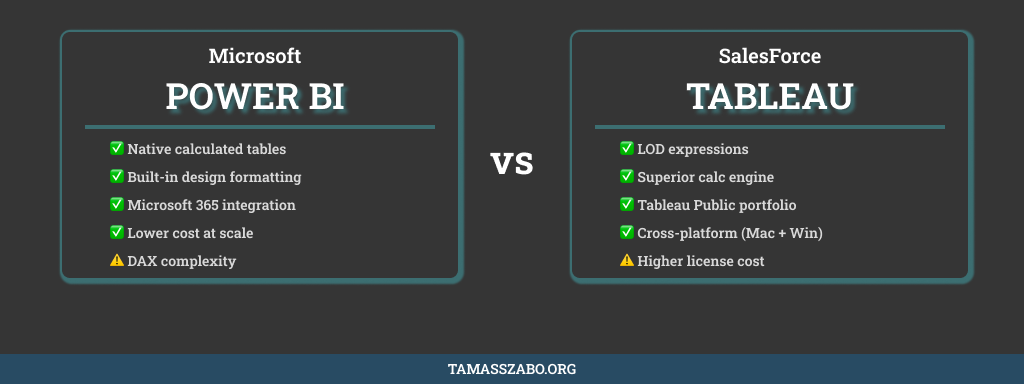
🥊 Power BI vs Tableau: An Honest Side-by-Side
Let me be transparent upfront: I am a Tableau person. I hold the certification, I’ve built dashboards for Fortune 500 companies in it, and it’s the tool I know inside out.
But I’ve been learning Power BI, and it has genuinely surprised me — in both directions.
This isn’t a “which tool is better” post, because that question doesn’t have a single answer. This is an honest breakdown of where each tool wins, where it loses, and what I’ve noticed from sitting in both chairs.
🎨 Design Flexibility: Power BI Wins Here (and I didn’t expect that)
This one caught me off guard. Coming from Tableau — where I rely heavily on Figma to design backgrounds, rounded rectangle containers, and section shading before I even open the tool — I assumed Power BI would be more constrained.
It isn’t. Power BI has significantly more built-in design options. You can add shading behind objects, apply rounded rectangle backgrounds, and control visual formatting directly inside the tool without needing an external design layer.
In Tableau, if you want a clean card-style layout with a subtle background behind a KPI group, you’re exporting a PNG from Figma and using it as a floating image. It works, but it’s a workaround. In Power BI, it’s just a setting.
For analysts who want professional-looking dashboards without a dual-track Figma workflow, this is a genuine advantage.
📊 Data Modelling: Tableau Is More Limiting Than People Admit
Here’s where I’ll say something that might be controversial among Tableau advocates: Power BI’s data modelling capabilities are stronger for most enterprise use cases.
The ability to create a new table directly inside Power BI — without leaving the tool — is something Tableau simply cannot match cleanly. In Tableau, if you need a date dimension, a parameter list, or a simple lookup table, you have to build a skeleton Excel file and add it as a separate data source. It works, but it adds friction, creates a dependency on an external file, and is easy to break when someone moves a folder.
In Power BI, you open the data view, write a DAX expression, and the table exists. It’s a fundamentally better experience for data modelling work.
My favourite Power BI feature
Creating calculated tables natively. In Tableau, building a date spine or a list of values requires an external Excel file as a scaffold. In Power BI you write a simple DAX expression like CALENDAR(DATE(2020,1,1), DATE(2026,12,31)) and the table is there instantly, inside the model. No external files. No broken data source paths. Clean.
⚙️ Complex Calculations: Tableau’s Calculation Engine Is Still Superior
This is where I find Power BI genuinely frustrating as someone used to Tableau’s calculation language.
DAX — Power BI’s formula language — is powerful. But it is also deeply unintuitive until you’ve spent significant time with it. The context transition between row context and filter context catches out even experienced analysts. Writing a simple running total, a period-over-period comparison, or a dynamic ranking in Tableau takes minutes. In DAX, the same calculation can take significantly longer to debug if you don’t fully understand filter context.
Tableau’s calculated fields are more readable, closer to natural language, and faster to write for complex analytical expressions. LOD (Level of Detail) expressions in particular — FIXED, INCLUDE, EXCLUDE — have no clean equivalent in Power BI. You can replicate the results, but the path to get there is significantly more complex.
Tableau wins
- ✅ LOD expressions (FIXED / INCLUDE / EXCLUDE)
- ✅ More readable calculation syntax
- ✅ Visual calculation editor with live preview
- ✅ Table calculations for running totals, ranks, moving averages
- ✅ Multi-source data blending
- ✅ Better performance on very large datasets (Hyper engine)
- ✅ Mac + Windows support
- ✅ Stronger visual storytelling and custom layouts
- ✅ Larger, more active public community (Tableau Public)
Power BI wins
- ✅ Native calculated tables (no skeleton Excel files)
- ✅ Better built-in design formatting options
- ✅ Deep Microsoft 365 integration (Teams, SharePoint, Excel)
- ✅ Significantly lower cost (especially at scale)
- ✅ Power Query for data transformation (no separate prep tool needed)
- ✅ Copilot AI for DAX generation and report summarization
- ✅ Easier for Excel power users to learn
- ✅ Better row-level security out of the box
- ✅ Active development cadence (monthly feature releases)
💰 The Pricing Reality
Power BI’s pricing is genuinely more accessible, especially for small to mid-size companies. A Power BI Pro licence costs around $10–14/user/month. Tableau Creator licences run closer to $75/user/month — a 5–7x difference.
For an individual analyst learning the tools, Power BI Desktop is completely free to download and use locally. Tableau Desktop requires a paid licence for professional use (though Tableau Public is free for public-facing work).
At enterprise scale, the picture becomes more nuanced. Power BI’s capacity model means that once a certain subscription tier is in place, read-only report consumers no longer need individual licences. Tableau’s per-user model scales linearly with headcount. For large organisations with many viewers relative to creators, Power BI’s total cost of ownership is almost always lower.
🔗 The Ecosystem Question
This is increasingly the deciding factor in enterprise tool selection, and it has nothing to do with features.
If your organisation runs on Microsoft — Azure, SQL Server, Excel, Teams, SharePoint — Power BI is the natural choice. The integration is native, the governance tools connect directly, and the data pipelines are simpler to maintain.
If your organisation is heterogeneous — mixed cloud providers, non-Microsoft databases, or a strong Mac user base — Tableau is more platform-agnostic and more flexible across different infrastructure setups.
The honest answer is: most medium and large European enterprises are Microsoft shops. Which means Power BI often wins by default, not by merit.
🧠 The AI Layer in 2026
Both tools have invested heavily in AI features this year.
Power BI Copilot helps users generate complete reports from prompts, create DAX formulas automatically, summarise large datasets, and provide contextual narrative insights inside dashboards. For analysts who struggle with DAX specifically, Copilot is a genuine productivity unlock — you describe what you want and it generates the formula.
Tableau’s equivalent is Tableau Pulse — an AI-driven metric layer that focuses on proactive insights, anomaly detection, and automatic trend summaries rather than report generation.
My take: Copilot is more useful day-to-day for an individual analyst right now. Pulse is more interesting at the organisational level for continuous monitoring.
🎯 My Honest Recommendation
Learn Tableau first if: you want to master data visualization, you work with complex multi-source data, you care deeply about the craft of dashboard design, or you’re targeting senior analyst and consulting roles where visual quality matters.
Learn Power BI first if: you’re earlier in your career, your organisation is Microsoft-heavy, budget matters, or you want to move quickly from zero to a functional dashboard without a steep learning curve.
Learn both eventually — which is where I am now. The job market rewards analysts who can operate in either environment, and once you understand the concepts deeply in one tool, the other becomes significantly easier to learn. The thinking transfers even when the syntax doesn’t.
Working with either tool professionally?
Whether you need a Tableau build or a Power BI setup reviewed, I offer fixed-scope engagements that deliver executive-ready output without agency overhead.
Work With Me →