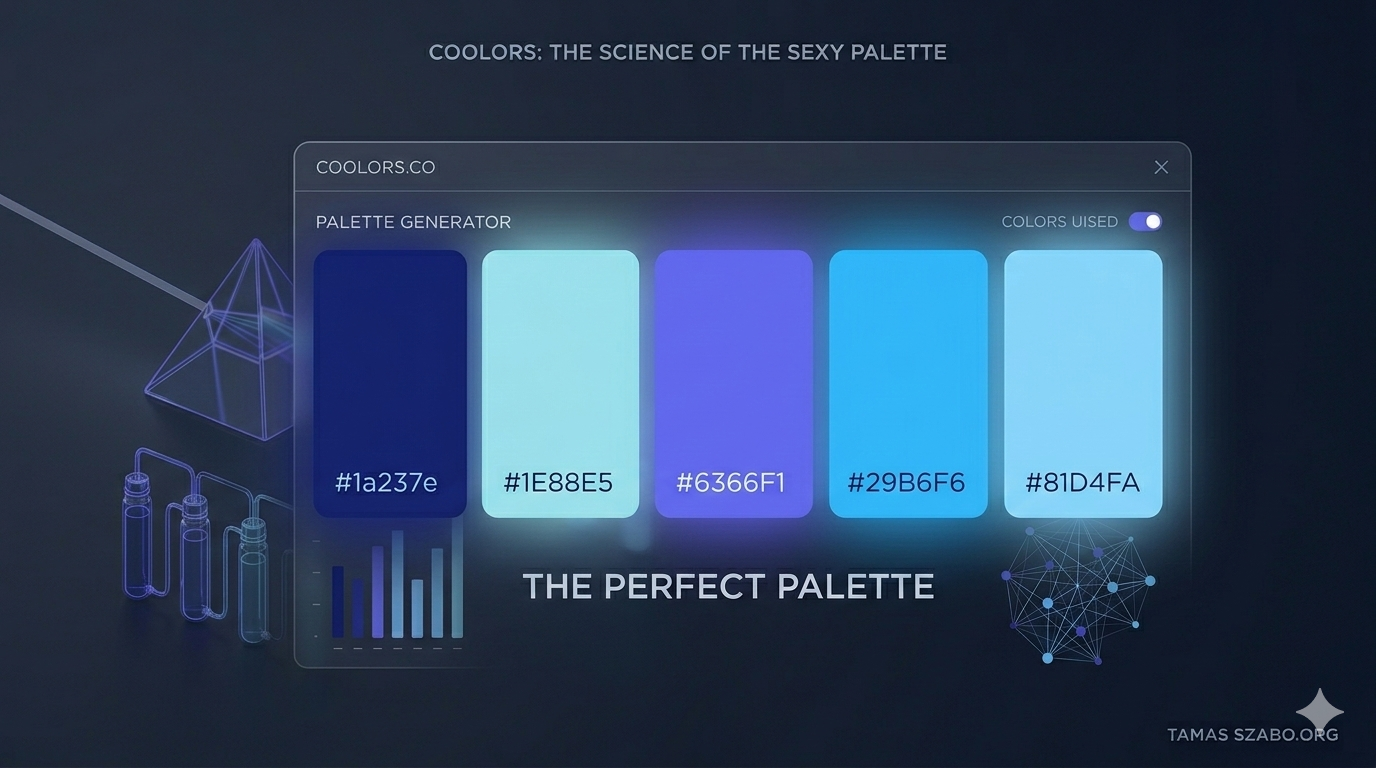
🎨 The Analyst’s Toolkit III.
In high-end analytics, a dashboard is more than a collection of charts - it is a Premium Product. To build a tool that executives actually use, you must balance three pillars: Visual Authority, Universal Accessibility, and Strategic Emphasis.
My secret weapon for mastering this balance is Coolors.co.
💎 Pillar 1: Visual Authority & Style
A premium feel comes from intentionality. Using Coolors, I move away from out-of-the-box software defaults to create bespoke palettes:
- Cohesive Tones: Whether I need a crisp Dark Mode for a command center or a Light & Airy look for a monthly PDF report, I can generate palettes that match a brand’s DNA perfectly.
- Thematic Search: From seasonal themes like Christmas to industry-specific vibes like Space, searching by topic ensures the dashboard feels like the subject matter it represents.
👓 Pillar 2: Universal Accessibility
A premium product is a product everyone can use.
- Eye Sensitivity & Contrast: High-contrast palettes can be exhausting; low-contrast ones are unreadable. Coolors helps me find that Goldilocks zone of comfort and clarity.
- Color Blindness Checks: I use built-in simulators to ensure that my Red vs. Green KPIs are still distinguishable for the 8% of men who have color vision deficiency. If they can’t read the status, the dashboard has failed its primary mission.
🎯 Pillar 3: Strategic Emphasis
The most common mistake in design is trying to make everything pop. If everything is bold, nothing is.
- The 60-30-10 Rule: I use Coolors to pick a neutral primary (60%), a secondary brand color (30%), and a high-contrast Action Color (10%) to highlight critical insights.
- Directing the Eye: By using a muted palette for background data and a vibrant Indigo for the most important KPI, I tell the user exactly where to look first.
🔗 From Figma to Tableau: The Workflow
As I detailed in my Figma Blueprint post, the design starts in Figma using the Coolors Plugin. Once the Product is approved, I move into implementation.
⚙️ Implementation: Custom Palettes in Tableau
To bring that premium feel into Tableau, you must go beyond the default color palettes. You do this by modifying your Preferences.tps file.
- Locate: Go to
Documents > My Tableau Repository. - Edit: Open
Preferences.tpsin a text editor (like VS Code or Notepad). - Inject: Add your hex codes inside the
<preferences>tag.
Pro Tip: For a detailed breakdown of palette types, check the Official Tableau Documentation.
🎁 Download My Favorite Palettes
I’ve curated a collection of my favorite consultancy-ready palettes—from Black & Gold Elegance to Ocean Sunset.
Click below to expand the code, then copy it into your Preferences file:
▶ Click to reveal Tableau XML Code
<?xml version='1.0'?>
<workbook>
  <preferences>

    <color-palette name="Sunny Beach Day" type="regular">
      <color>#264653</color>
      <color>#2A9D8F</color>
      <color>#E9C46A</color>
      <color>#F4A261</color>
      <color>#E76F51</color>
    </color-palette>

    <color-palette name="Black & Gold Elegance" type="regular">
      <color>#000000</color>
      <color>#14213D</color>
      <color>#FCA311</color>
      <color>#E5E5E5</color>
      <color>#FFFFFF</color>
    </color-palette>

    <color-palette name="Ocean Sunset" type="regular">
      <color>#001219</color>
      <color>#005F73</color>
      <color>#0A9396</color>
      <color>#94D2BD</color>
      <color>#E9D8A6</color>
      <color>#EE9B00</color>
      <color>#CA6702</color>
      <color>#BB3E03</color>
      <color>#AE2012</color>
      <color>#9B2226</color>
    </color-palette>

  </preferences>
</workbook>